
Getting Started
Installation
Prerequisites:
- WordPress 5.8 or higher
- PHP 7.4 or higher
- Tutor LMS 3.0 or higher
- Active TutorPress license or free trial
Installation Steps:
- Download TutorPress from your purchase confirmation email or account dashboard
- Navigate to WordPress Admin → Plugins → Add New → Upload Plugin
- Upload the ZIP file and click “Install Now”
- Activate the plugin through the Plugins menu
Watch this video for a demonstration
After activation, you’ll see TutorPress listed under the Tutor LMS menu.
License Activation
TutorPress uses Freemius for secure license management. You will also need a license to start your 14-day free trial.
To activate your license or start your free trial:
You first need to retrieve your license from the purchase confirmation email that you should have received. You can also login with the credentials in the purchase confirmation email and navigate to Customer Portal → Licenses.
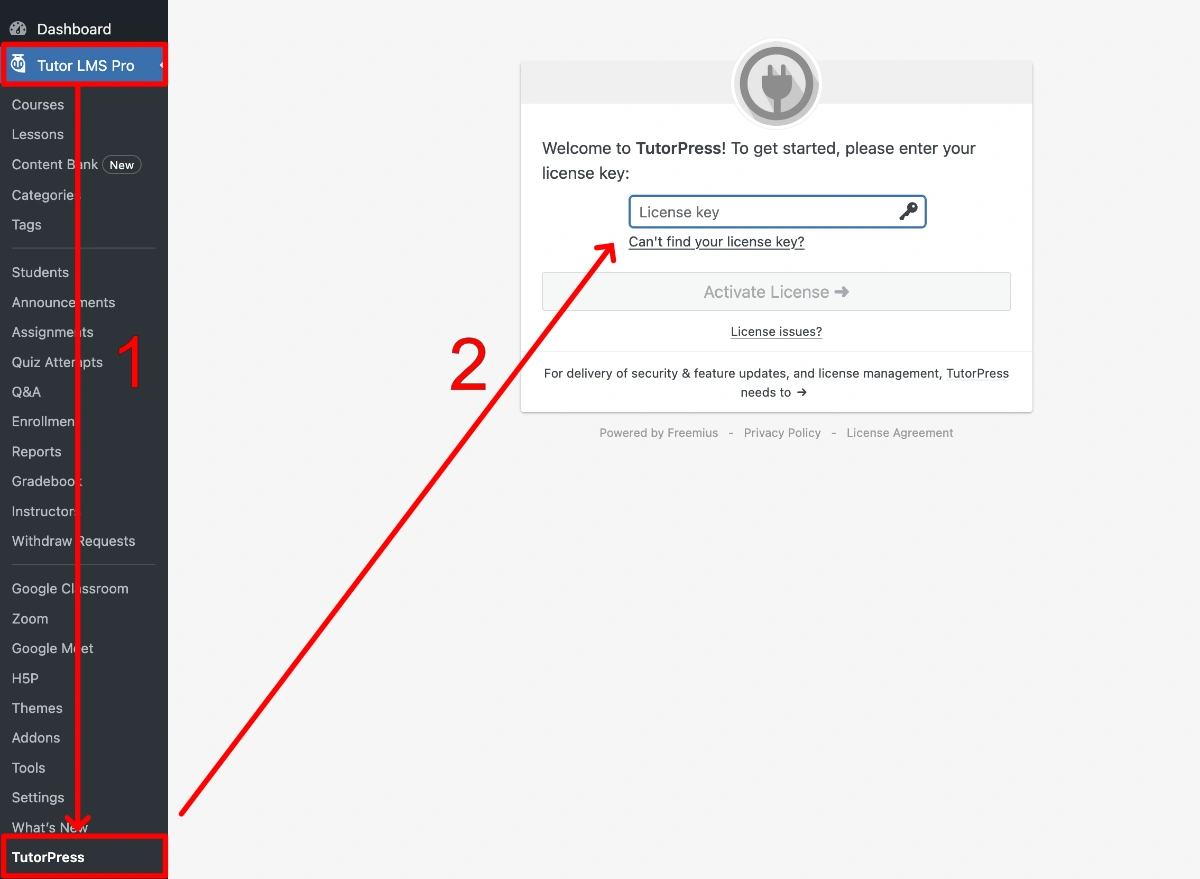
- Navigate to Tutor LMS → TutorPress in your WordPress admin
- Enter the License key
- Click “Activate License”
Important Notes:
- No credit card required for the free trial
- All features are available during the trial period
- Premium features will show promotional content when the license expires
- License status can be viewed in Tutor LMS → TutorPress → Account
Required Tutor LMS Settings
Before using TutorPress, you must configure two critical settings in Tutor LMS to ensure proper functionality.
Navigate to: Tutor LMS → Settings → Advanced
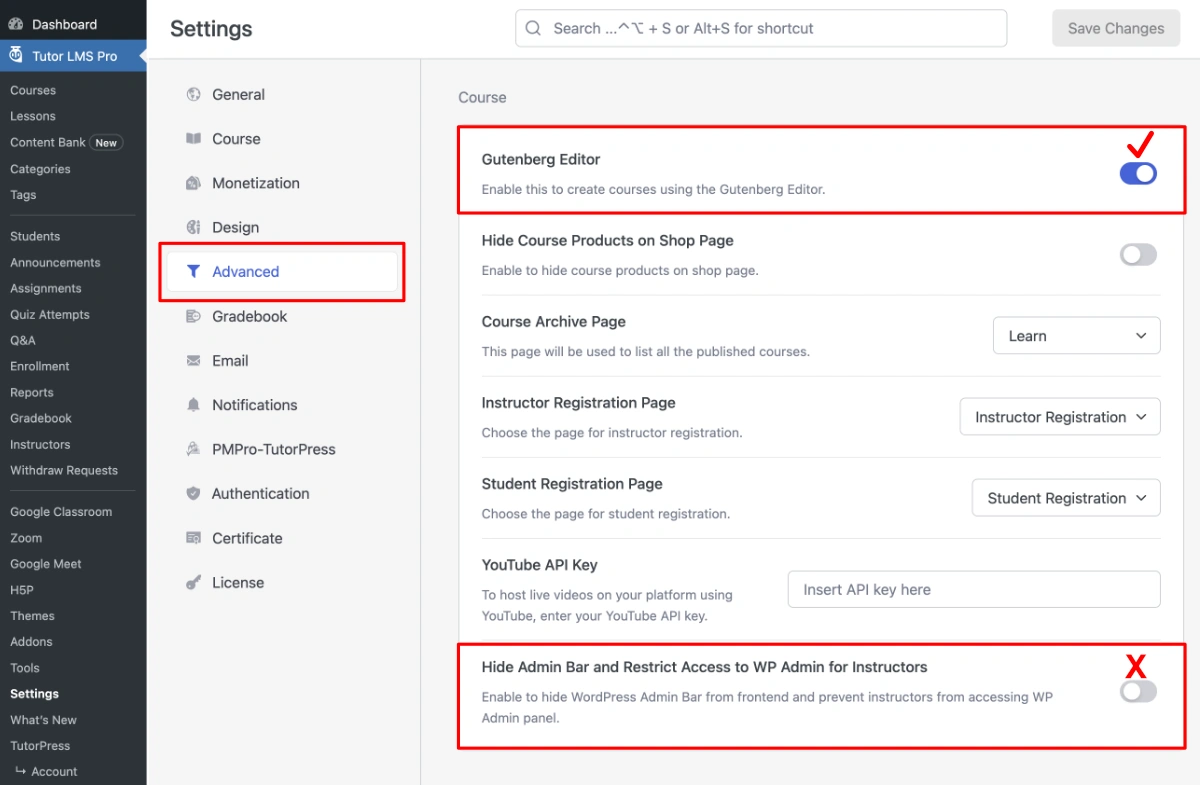
- Enable Gutenberg Editor
- Disable “Hide Admin Bar and Restrict Access to WP Admin for Instructors”
Tutor LMS’s Gutenberg Editor setting must be enabled in order to ensure that there are no restrictions applied to Gutenberg access in Tutor LMS. Enabling this setting also displays “G” icons in the main Course description, and Lesson editors, in Tutor LMS’s front end course builder.
Tutor LMS uses the TinyMCE rich-text editor for Lessons in the frontend course builder. There is a known issue with the TinyMCE editor that causes existing Gutenberg blocks to break when loaded in TinyMCE. Do NOT open Lesson content with Gutenberg blocks in Tutor LMS’s frontend course builder. We have notified them of this issue, and apologize for the inconvenience. To reduce the risk of this happening to your instructors, we recommend restricting access to the frontend course builder using TutorPress’s setting options.
TutorPress moves course creation and management into the backend of WordPress and the admin dashboard provides convenient shortcuts to the Gutenberg editor from the frontend. If this setting is enabled, instructors will lose those shortcuts.
Last updated February 4, 2026