
Pricing Model Panel
Feature-Parity with Tutor LMS Native eCommerce
The Pricing Model panel is where instructors manage the PMPro memberships for their courses. The panel only displays a “Free” option when course monetization is disabled, but when enabled it includes all of the same features and functionality of Tutors “native” commerce.
As an integration, we recommend reading the documentation for both Tutor LMS and Paid Memberships Pro. Any settings that diverge from Tutor LMS will be expanded upon, but otherwise this documentation will link to Tutor LMS and Paid Memberships Pro’s own documentation.
We will do our best to only point you to relevant documentation, and will continue to improve our own documentation as-needed. You can safely ignore Tutor LMS documentation on enabling the Subscriptions addon, and also ignore managing subscriptions from Tutor LMS → Subscriptions. Instead memberships are managed from Paid Memberships Pro’s Memberships menu in the WordPress backend.
For more information, visit the following documentation:
- Creating a Subscription Plan (Tutor LMS)
- Configure Purchase Options (Tutor LMS)
- Paid Memberships Pro Initial Setup
- Paid Memberships Pro Membership Levels
- Paid Memberships Pro Members List
- Paid Memberships Pro (Member) Subscriptions page
Purchase Options drop down
Select the payment model(s) students can choose from to purchase the course from the “Purchase Options” drop down menu.
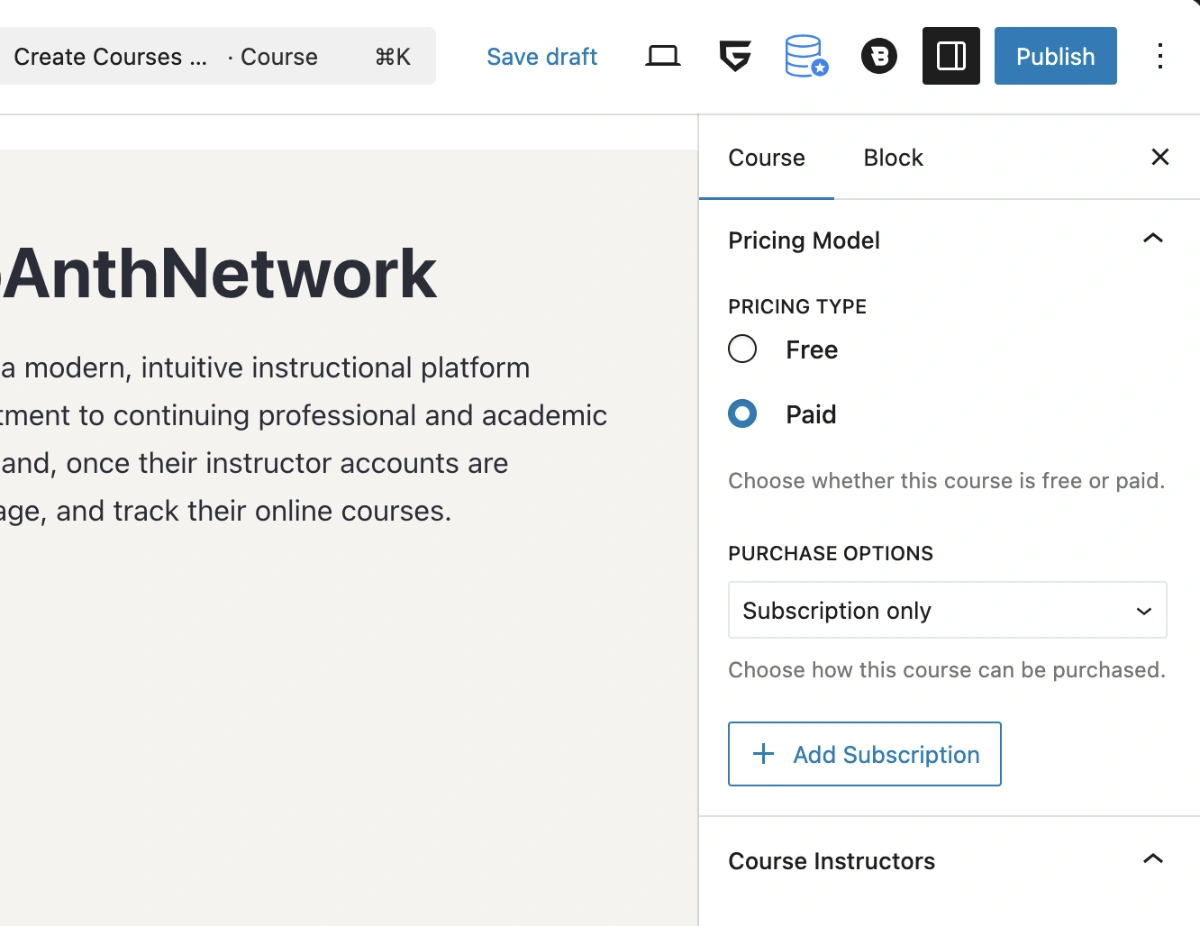
- One-time Purchase: A single payment for lifetime or fixed-term access.
- Subscription Only: A recurring subscription to access the course.
- Subscription or One-time Purchase: Gives students the choice between both.
- Membership Only: Restricted to students with an active site-wide membership.
- All: Students can choose from any of the above methods.
Note: The Membership Only and All options are only available if a full-site membership has been created and the instructor has Administrative privileges. This is because instructor commissions do not apply to full-site memberships.
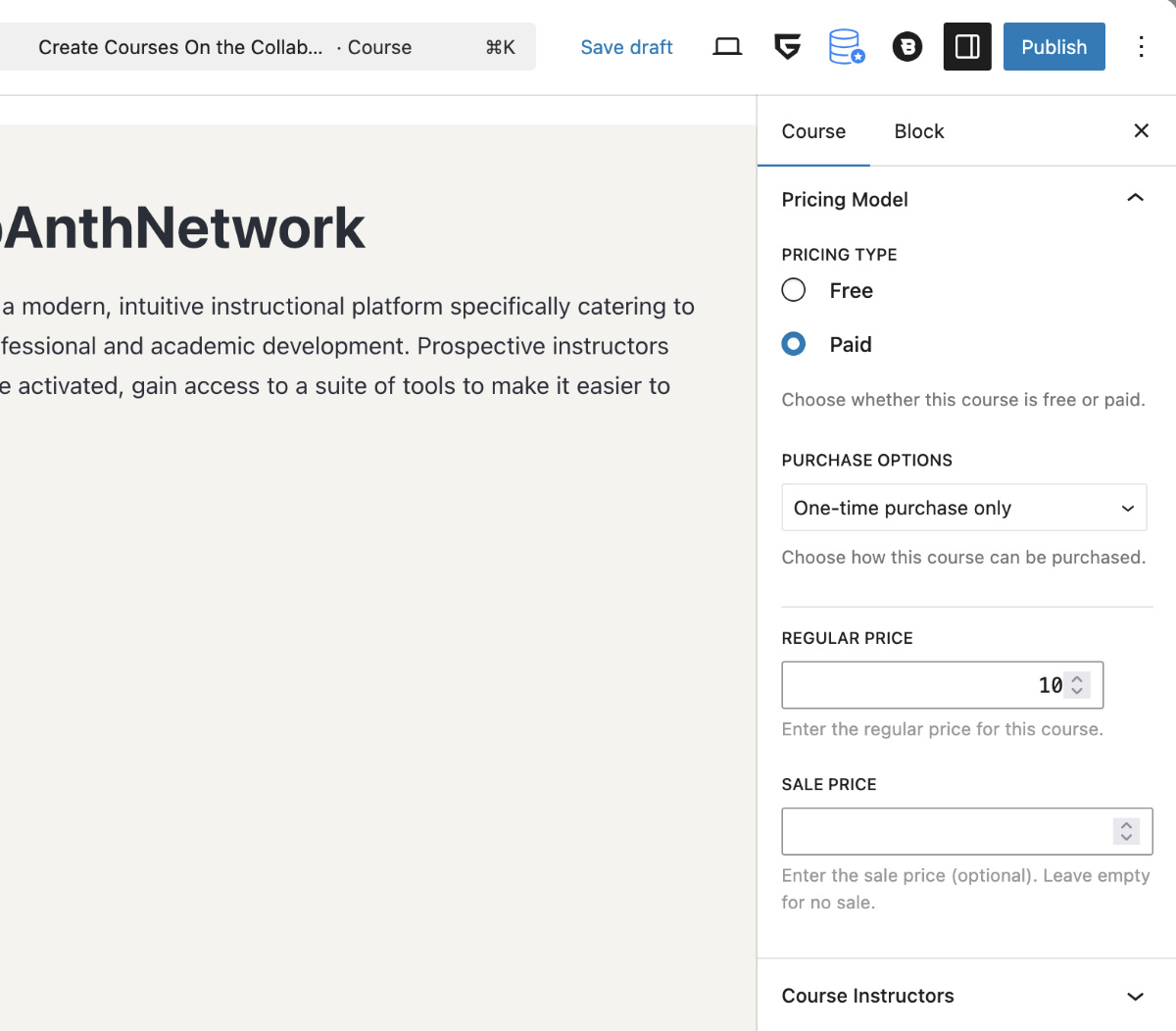
One-Time Purchase Only settings
Selecting the “One-time purchase only,” or the “Subscription or one-time purchase” option from the Purchase Options drop down will result in a regular price field, and an optional sale price field. Leave the sale price field empty to sell the course at regular price.
Subscription Plans modal
Selecting the “Subscription only,” or the “Subscription or one-time purchase” option from the Purchase Options drop down will result in the display of an “Add Subscription” button that will open up a “Subscription Plans” modal when clicked:
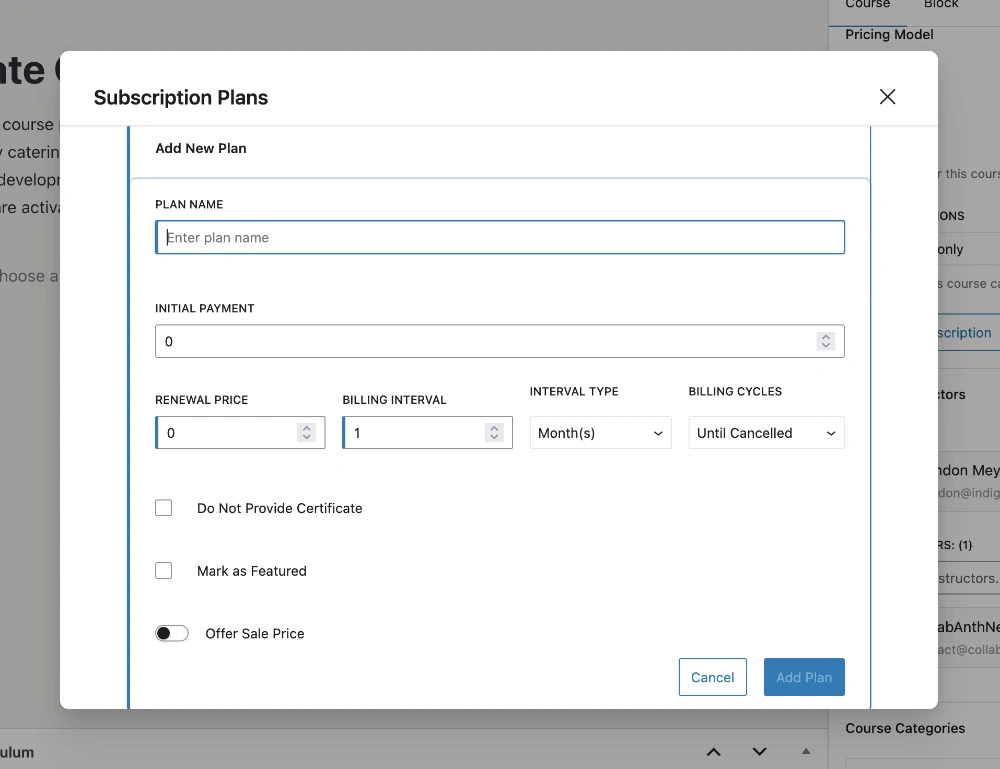
In TutorPress’s PMPro integration an initial payment is required, and a 0 amount means the student does not pay anything until the first renewal. This is different from the optional “Charge enrollment fee” in Tutor LMS’s native ecommerce. However, this is easily replicable with PMPro by increasing the initial payment.
- Initial Payment: the first payment due (PMPro). This amount can differ from the renewal price.
- Renewal Price: The amount to be charged in subsequent recurring billing cycles.
- Billing Interval and Type: The frequency of renewals defined in days(s), week(s), month(s), and year(s).
- Billing Cycles: The total number of recurring billing cycles for the plan, including the trial period (if applicable) but not including the initial payment.
- Do Not Provide a Certificate: Disables course certificates in the plan.
- Mark as Featured: Highlights the subscription plan if you have multiple plans available in the course.
- Offer Sale Price: Allows you to offer a discounted price for the plan. You can also schedule a sale price beginning and ending period.
Managing Multiple Course Plans
You can create multiple course subscription plans with different pricing and features to cater to various student needs and preferences.
Last updated February 12, 2026