
Getting Started
Installation
Prerequisites:
- Tutor LMS 3.0 or higher
- TutorPress 2.0.16 or higher
- Paid Memberships Pro 3.6 or higher
- Active TutorPress license or free trial
Installation Steps:
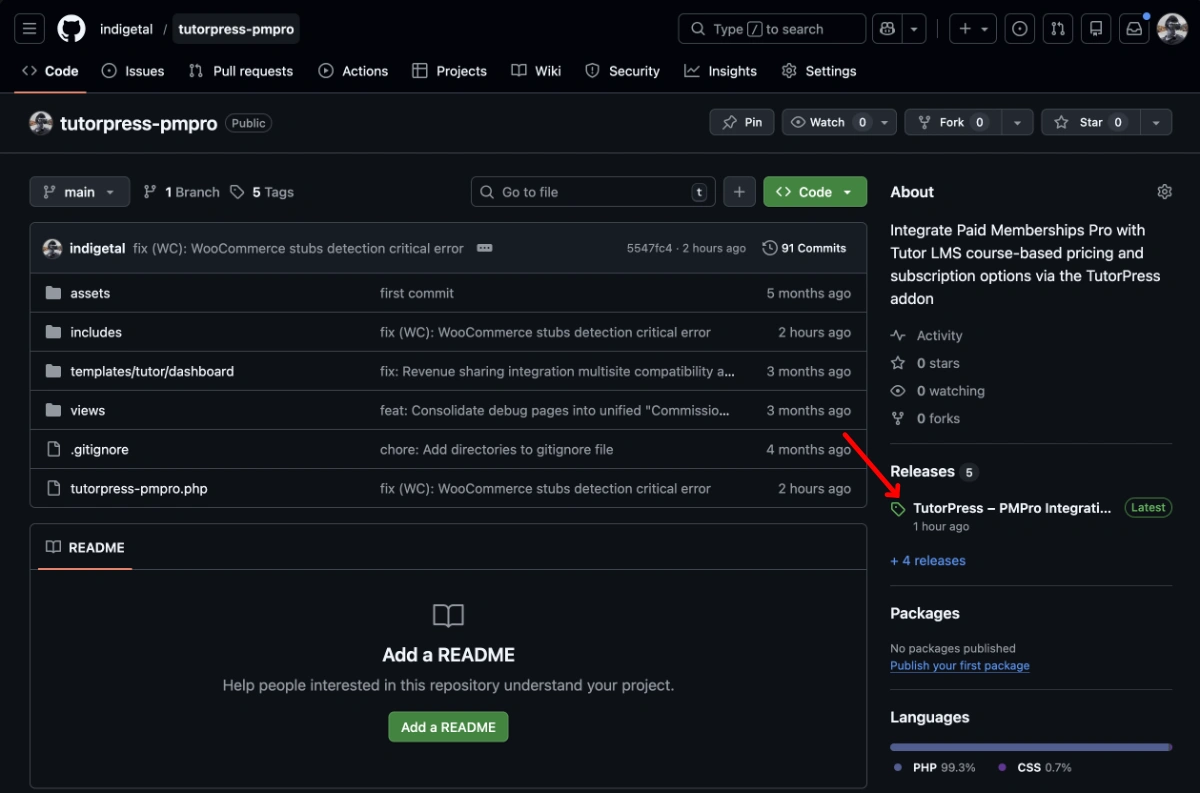
- Download the latest TutorPress-PMPro Integration release from github
- Navigate to WordPress Admin → Plugins → Add New → Upload Plugin
- Upload the ZIP file and click “Install Now”
- Activate the plugin through the Plugins menu
Watch this video for a demonstration
Tutor LMS Configuration
Before using the TutorPress-Paid Memberships Pro Integration addon, you must configure Tutor LMS to use Paid Memberships Pro. It is important to note that the TutorPress-PMPro addon replaces Tutor LMS’s own Paid Memberships Pro addon, and its Subscriptions addon.
Please ensure that the Paid Memberships Pro and Subscriptions addons in Tutor LMS → Addons are DISABLED. You only need to activate the Paid Memberships Pro and the TutorPress-PMPro Integration plugins to begin.
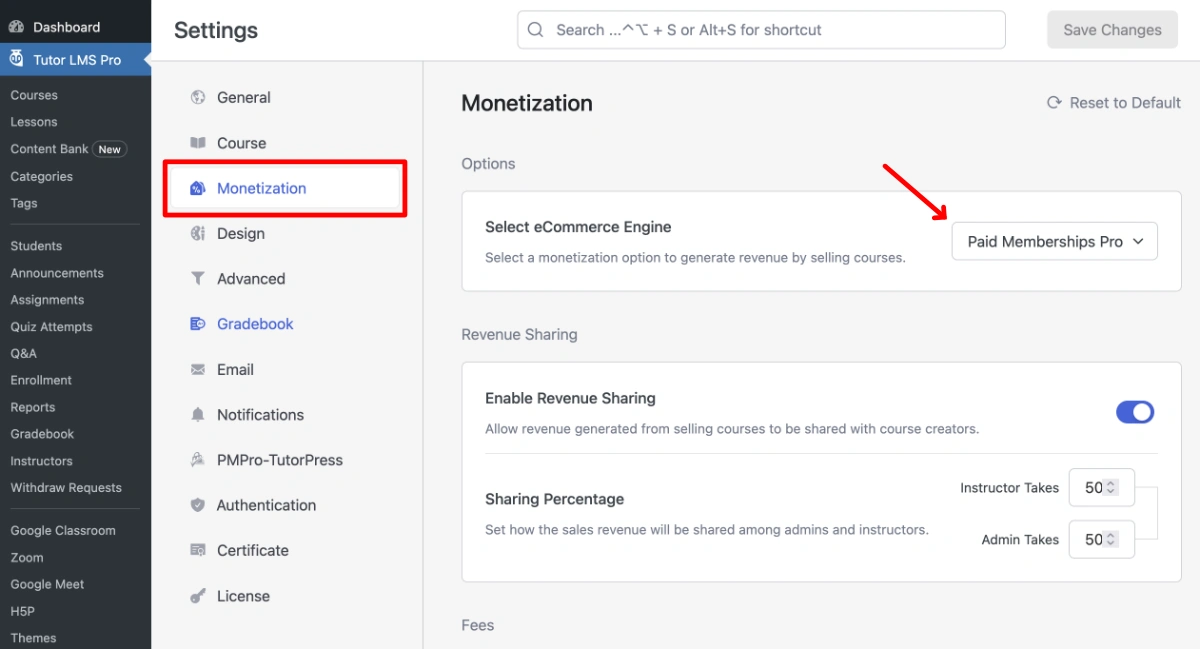
Select Paid Memberships Pro as the eCommerce Engine
Navigate to Tutor LMS → Settings → Monetization and select Paid Memberships Pro in the “Select eCommerce Engine” drop down menu. You are now using Paid Memberships Pro to sell courses in Tutor LMS.
The Monetization settings tab is also where you configure Revenue Sharing, Fees, and Withdrawal settings. Learn more by visiting Tutor LMS’s documentation.
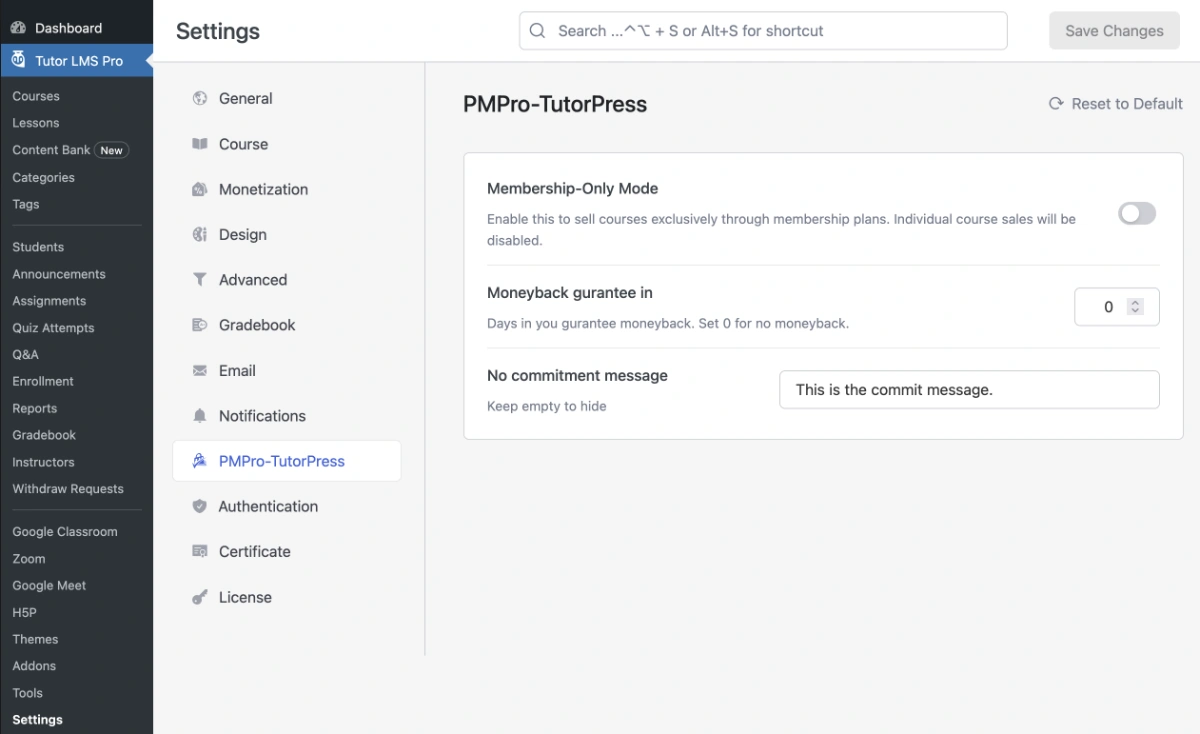
PMPro-TutorPress Settings tab
Navigate to Tutor LMS → Settings → PMPro-TutorPress for specific settings related to the integration:
- Membership-Only Mode: Enabling this setting disables the ability to sell courses individually, so that monetization is exclusively through sitewide membership plans.
- Money-Back guarantee in: Enter the number of days a student has to request a refund. If you do not wish to offer a money-back guarantee, set this value to 0.
- No Commitment Message: Set a commitment message that will be displayed in the Paid Memberships Pro checkout process. Leave blank if you do not want to include a commitment message.
Last updated February 4, 2026