

Editor & Dashboard Redirects
This section explains the options available to configure redirects to the Gutenberg editor and how to control course editing workflows.
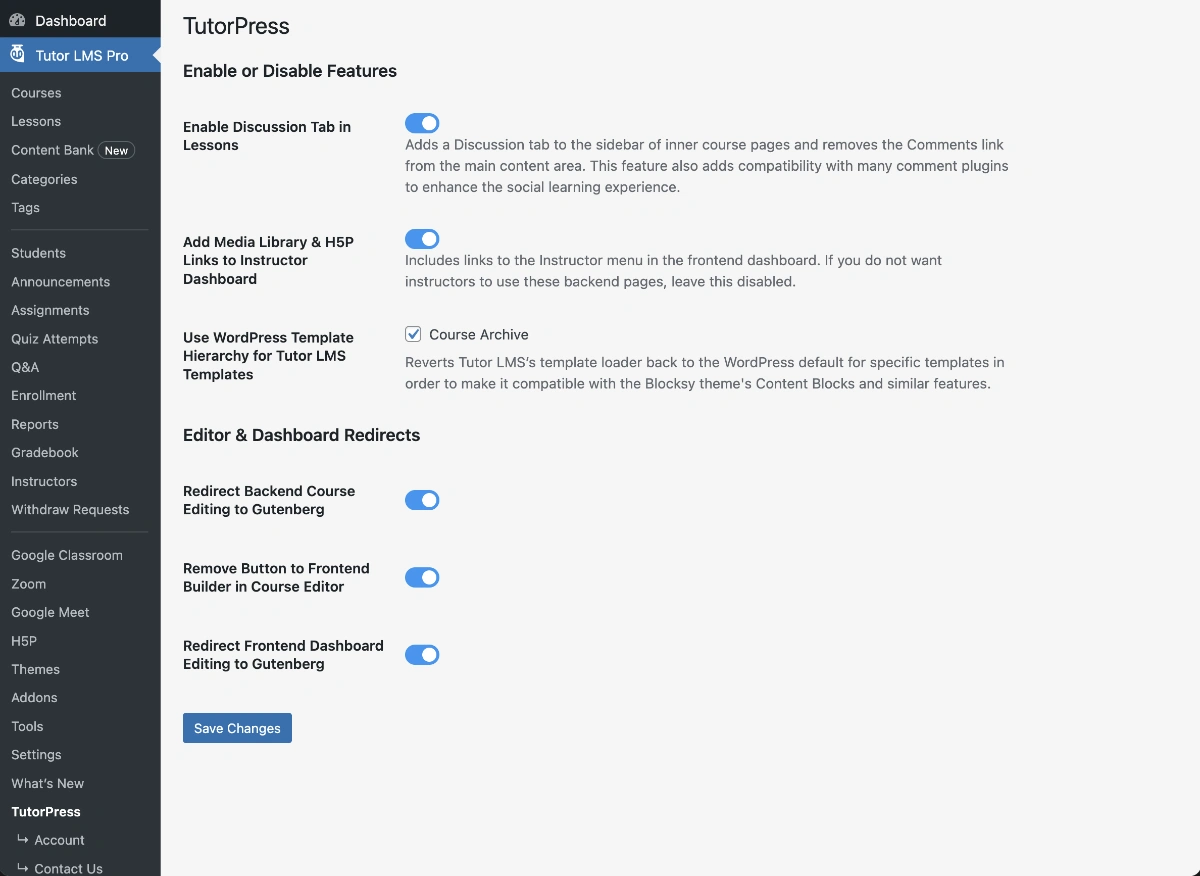
Quick Tip: In addition to the following settings, you may want to check that you have already configured the required Tutor LMS settings.
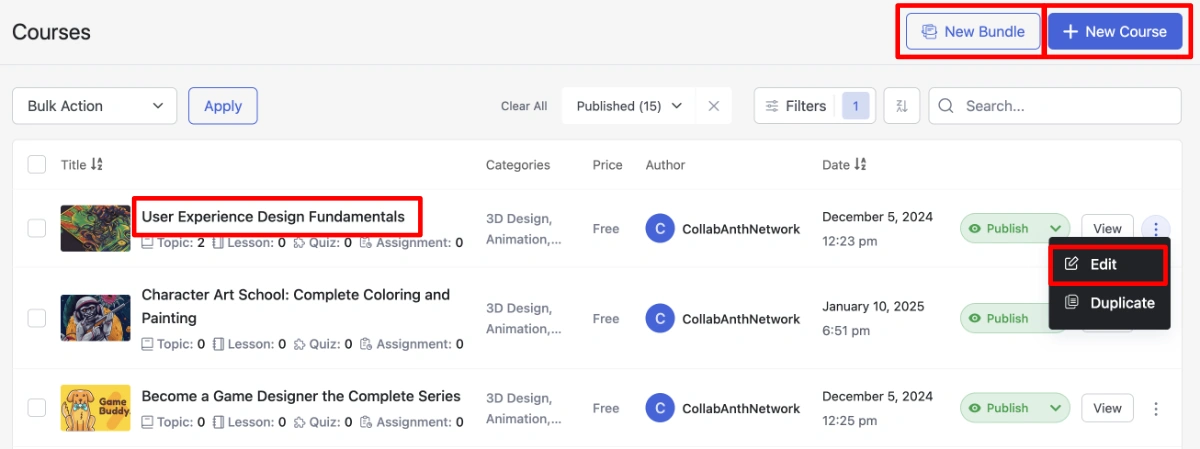
Redirect Backend Course Editing to Gutenberg
When enabled, this setting redirects course edit links in the WordPress admin to the Gutenberg editor instead of Tutor LMS’s frontend course builder.
This includes:
- The title of a Course in the backend course list page
- The Edit link in the elipsis pop-up of each course row
- Clicking the “+ New Course” button at the top of the course list page
- Clicking the “New Bundle” button at the top of the course list page (when the Course Bundle addon is enabled)
This fundamentally changes how courses are edited in Tutor LMS. Instead of being redirected to Tutor LMS’s frontend builder, users work directly in the familiar Gutenberg editor for courses, lessons, and assignments with TutorPress’s metaboxes and panels that replicate and improve upon the settings in Tutor LMS’s frontend builder.
Remove Button to Frontend Builder in Course Editor
When enabled, this setting removes the button in the Gutenberg editor that links to Tutor LMS’s frontend course builder.
Use this when:
- You want to fully commit to the Gutenberg editing workflow
- You want to prevent confusion by removing the option to use the frontend builder
- You want to completely remove the risk of the frontend course builder breaking the rendering of your Gutenberg blocks (for lessons)
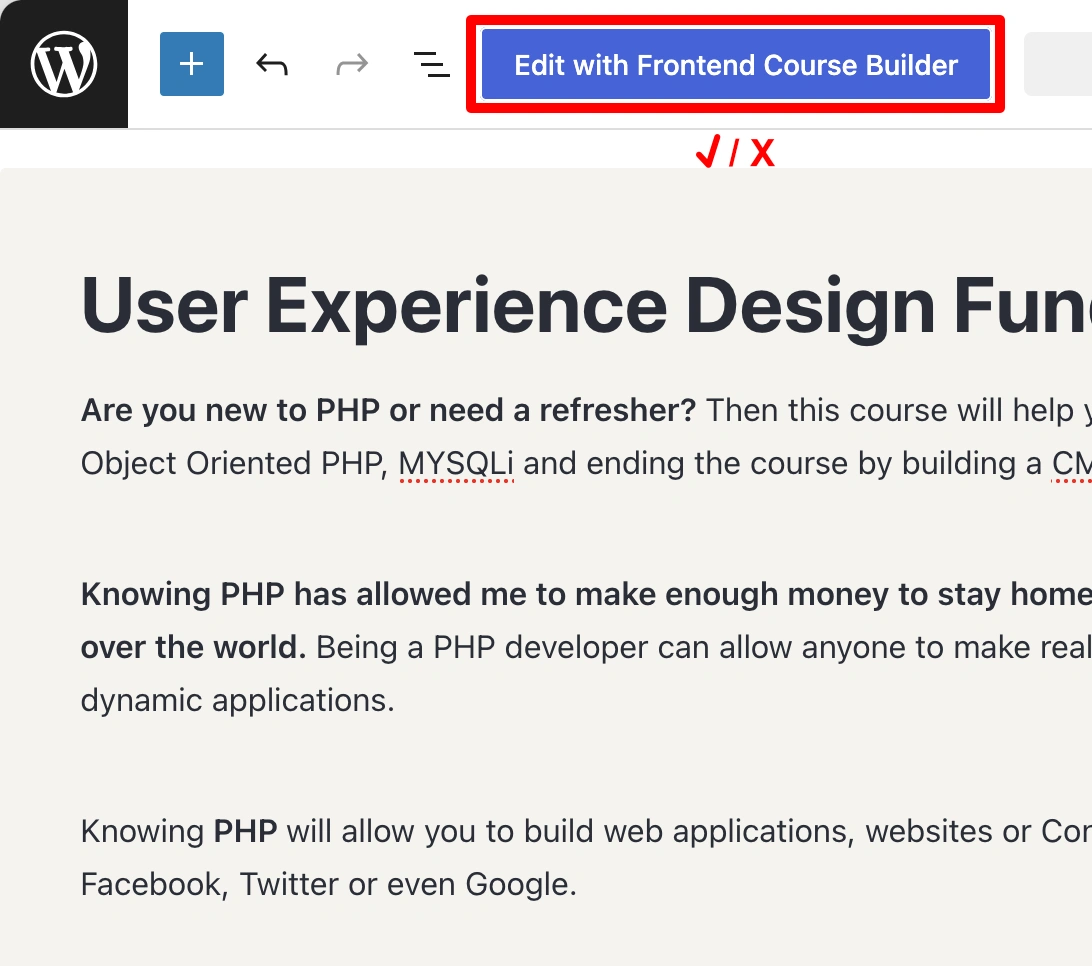
Quick Tip: If you experience any issues in Gutenberg, or want to confirm the bidirectional sync with Tutor LMS’s frontend course builder, enabling the “Remove Button to Frontend Builder in Course Editor” setting is a non-disruptive way to access the Tutor LMS frontend course builder. However, we advise you not to open lessons with existing content in the frontend course builder.
Redirect Frontend Dashboard Editing to Gutenberg
When enabled, this setting redirects course edit links in the frontend instructor dashboard to the Gutenberg editor instead of Tutor LMS’s frontend course builder.
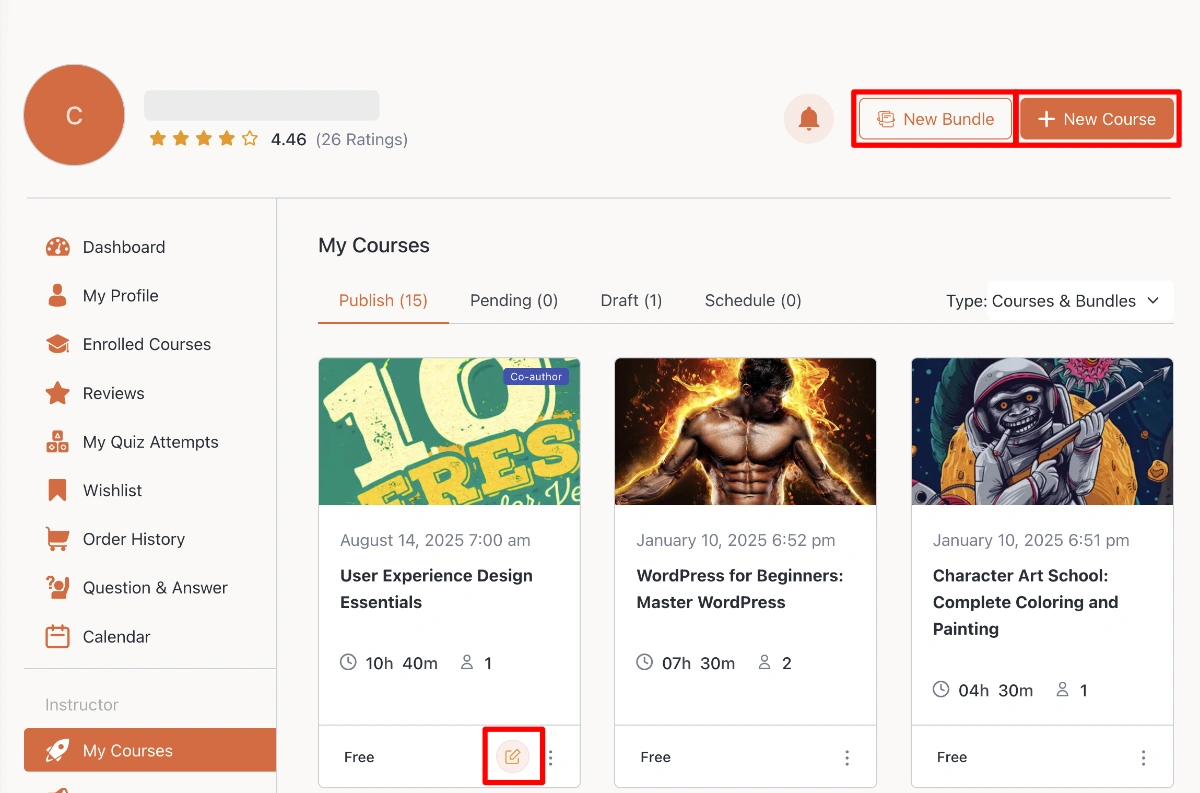
This includes:
- The Edit pop-up icon at the bottom of each course card in the instructors’ “My Courses” tab
- Clicking the “+ New Course” button at the top of the frontend dashboard
- Clicking the “New Bundle” button at the top of the frontend dashboard (when the Course Bundle addon is enabled)
Last updated February 4, 2026